I thought that after decades of using a keyboard, touch typing would come naturally. It doesn’t. All that time just makes bad keyboard habits harder to break. Like the instinct to look down at the keyboard. It is so strong the effort to fight it just makes things slower.
Back in my day, there were only two solutions to learning how to touch type (that I know of): classes and Mavis Beacon. Today we got a few more options, a lot of free ones, and one mature-rated game. It’s not Mavis Beacon.
After sending out requests for interviews I was still stuck in an office where I don’t need to be. And this place is a COVID-19 deathtrap. So, with hours to spare I decided to learn the ways of effortless typing without looking at the keyboard.
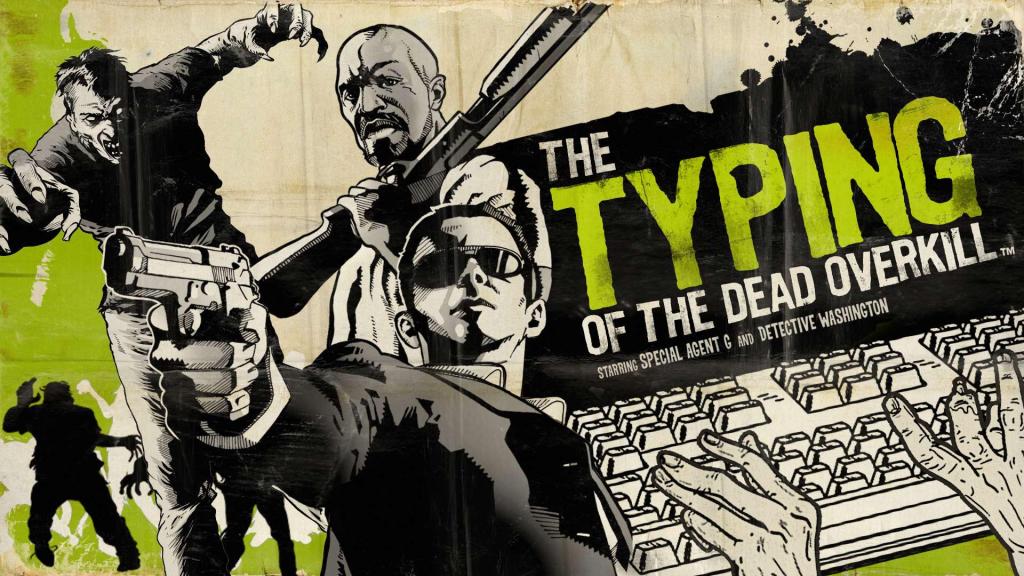
My first thought was to try The Typing Of The Dead: Overkill. A foul-mouthed light gun shooter that was turned into a typing game. Instead of shooting the undead with bullets, you defeat the horde by typing in letters, symbols, words, and whole sentences. Depending on the difficulty you choose.
Nothing motivates a typist more than surviving a zombie apocalypse. But, a complete version of that game, including its expansions, costs almost RM60 on Steam. And what I need is training, not a challenge. Not yet anyway.
So I did what I should have done in the first place, searched online on ways to learn how to touch type. And there are plenty of websites that offer free tutorials and online programs. Some will require users to register, but the one I settled on doesn’t.
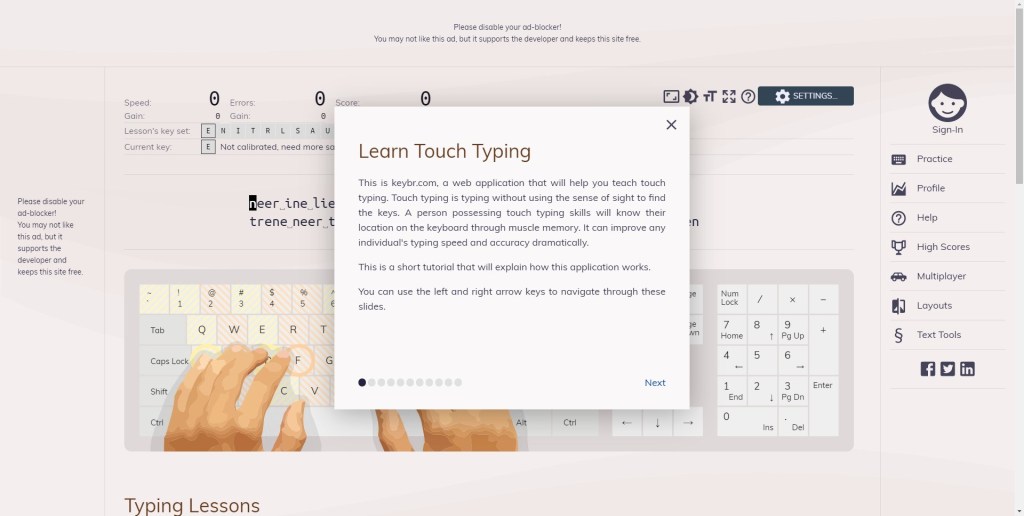
KeyBr claims to use algorithms to generate typing exercises based on your typing skills. I love the statistics it generates, but some of the reasons I picked this one above others is:
One, you don’t need to register. Just give it your email, it’ll send you a link and that’ll work as a way to keep your progress.
Two, the exercises are not based on repetition. Instead, it is based on patterns of actual words you are going to end up spelling anyway.
I appreciate how the difficulty ramps up. How it starts with common letters and slowly adds more letters. I don’t get lulled by the patterns, so it is always an effort.
The whole thing is not easy. Mainly because I had to unlearn a lot of my own bad typing habits. Forcing myself to type using the correct fingers slows me down further.
I’m about two hours in and I’m a little more than halfway through the alphabet. Slowly, but surely, the algorithm helps me iron out my problem letters.
One thing I have learned while doing the exercises is that my posture and the keyboard I use, matter. At the office, my desk is high and my chair is low, so my arms are straighter when I type. This is not as comfortable as having the desk low and chair high with my elbow bent at 90-degrees.
Because of this, I type faster at home. Keys just feel easier to reach when I sit up straight and my arms are in the right position.
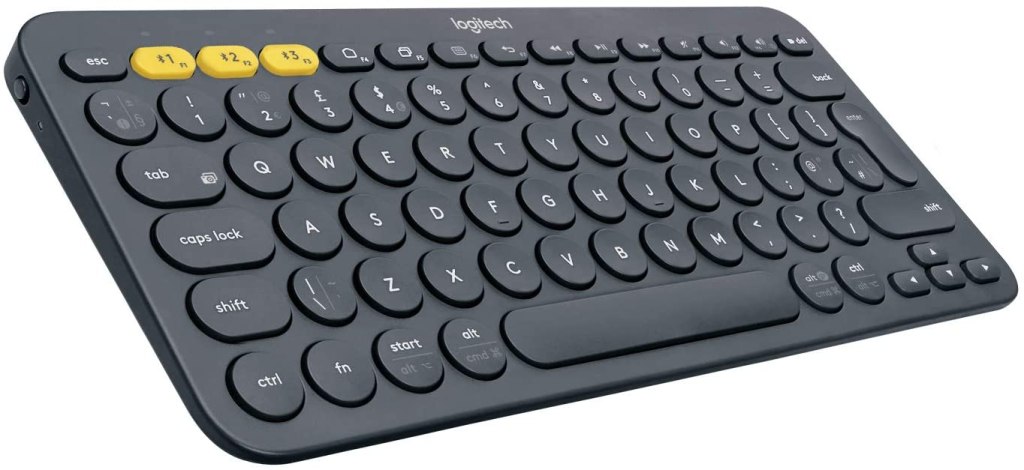
The keyboard I am using is a Logitech K380. A highly recommended keyboard for connecting to multiple devices.
So, let’s say you got a phone, a laptop, and a smart TV. You can use this keyboard on all three devices (one at a time of course), via BlueTooth.
However, it turns out I type way faster on a regular keyboard. Maybe it’s the keys, the tried and tested layout or the feel of typing on a full keyboard, but I am just slower on this Logitech.
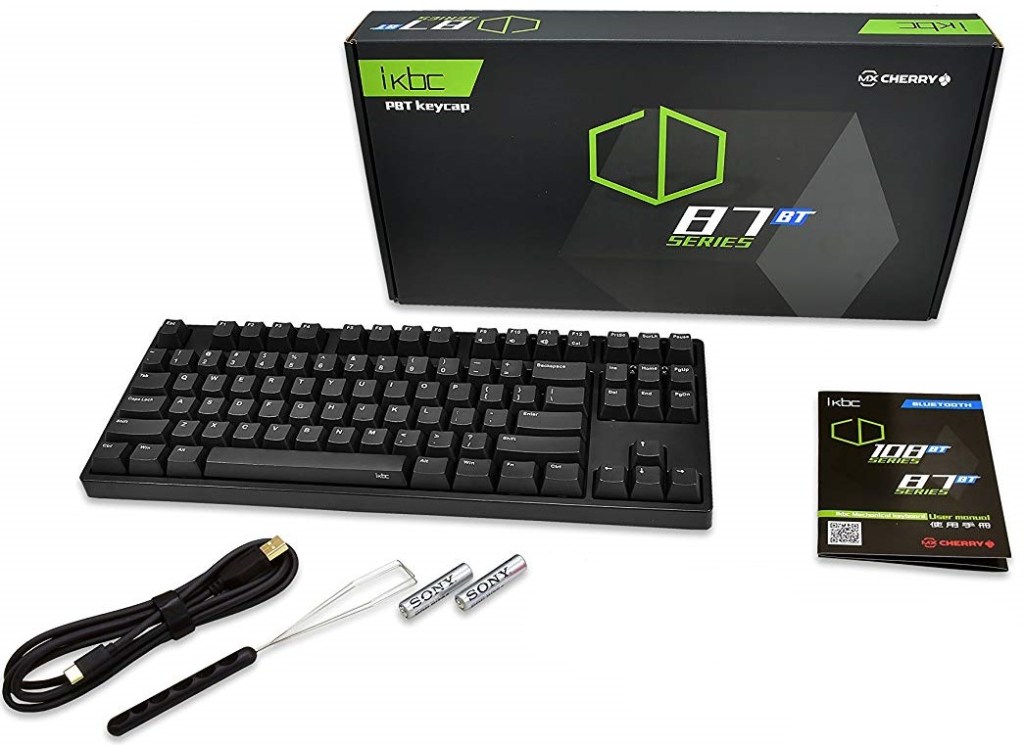
That made me want to upgrade to an iKBC CD87 BT. It is a wireless mechanical keyboard that functions like the K380, but it uses standard keycaps, larger, and costs way more. Until I get one, I’ll work with what I have.
With enough practice, I hope to be able to turn thought into words on the screen effortlessly. Or at least without looking at the keyboard.
 Azizul Rahman Ismail