
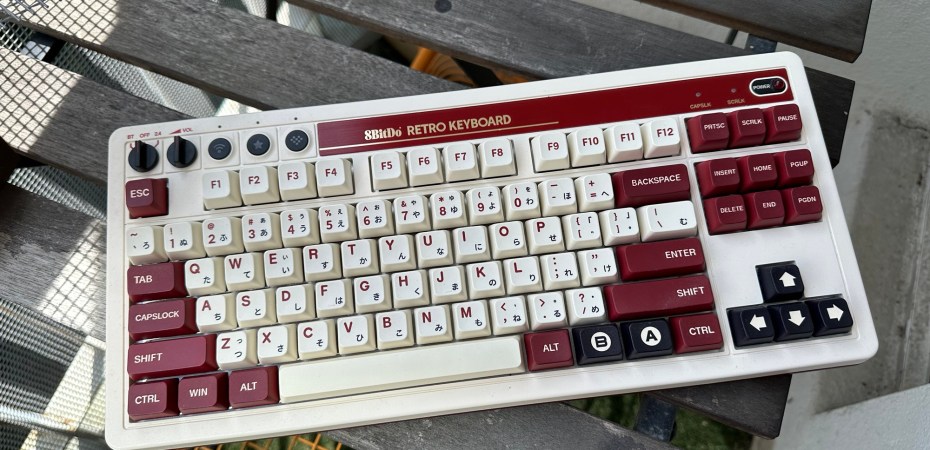
To someone who wants to get their first mechanical keyboard but is unwilling or not yet ready to wade towards the deep end of the hobby, I’d recommend getting — or at least trying out — the 8BitDo Retro Keyboard.
I picked up mine over a month ago. It has all the features I was looking for: It is well-made and has a TKL layout, clicky switches, and PBT keycaps. On top of that, the Retro Keyboard is relatively light, has no backlight, and has a retro look. I like that.
I brought the keyboard to the office to test it. The clicky Kailh Box White Switches V2 switches didn’t bother anyone, perhaps because of all the ambient noise.
I find the giant programmable super buttons useful. With some fiddling, I managed to set the “A” button to copy and the “B” button to paste. I place them on the left side of the keyboard so I can use them while using a mouse. The keyboard also has programmable buttons where the right-side “FN” and “Windows” buttons would be, but the location makes it less useful to me.
I also found the keyboard’s three connection options helpful. I connect it via USB-C to my laptop at home while I use the 2.4gHz dongle at the office. At the same time, I could use the switch on the top left to toggle between typing on the PC or my iPad, which is connected via Bluetooth.
While the 8BitDo Retro Keyboard does not have all the features of a higher-end mechanical keyboard, it can be modified and upgraded. Both the switches and PCB are hot-swappable for those who dare.
I’m happy with it, and I think most people would be too.
8BitDo Retro Keyboard comes in five variants: N Edition (inspired by the Nintendo Entertainment System), Fami Edition (Inpired by the Nintendo Family Computer), C64 Edition (Inspired by the Comodore 64), and M Edition (Inspired by the IBM PC).
The one I have is the Fami Edition.
 Azizul Rahman Ismail