
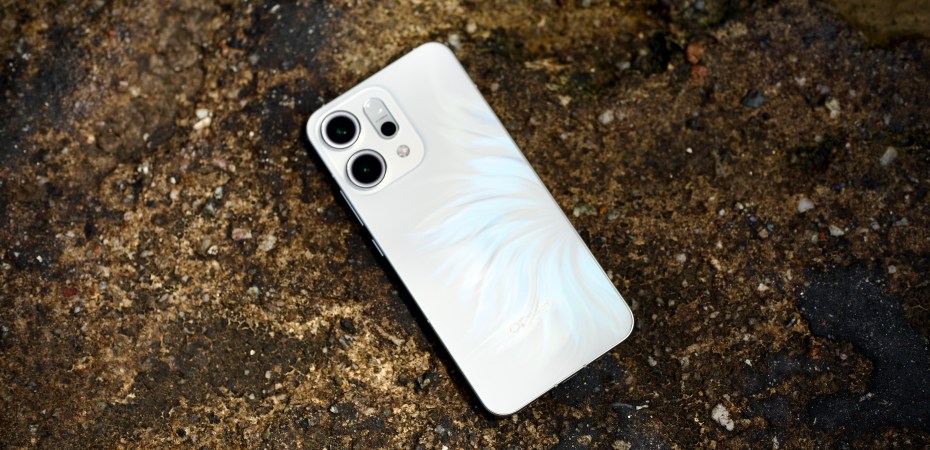
Oppo will release its Reno14 series of devices in Malaysia on Tuesday (1 July 2025). Ahead of its launch, I was leant the Oppo Reno14 5G. This is a brief on how I set up the device. These are my preferences and recommendations.
Initial Set Up
First, I set Reno14’s default language to English and region to Malaysia. Then, I agree to the User Agreement and User Privacy Protection screen.
I always recommend setting up a new device from scratch, so I skip the Set up using another device screen.
Next, I connected the Reno14 to my home Wi-Fi. Initialising a device for the first time requires numerous updates, and connecting to a fast Wi-Fi connection helps.
Data & Security
Because I recommend starting a device fresh, with no pre-installed apps and no old data, I skip the Copy apps and datascreen.
Then, I log in at the Google sign-in screen to get access to Google services.
For testing purposes, I skip the Connect to mobile network screen. However, if I had a SIM card installed, this is where I would activate it.
Next comes one of the most crucial steps in the set up process. Do not skip this. At the Unlock method screen, I set up the Password, Fingerprint, and Face unlock options. Setting up a password is a must, and I recommend registering more fingers after the initial set up.
Google Services
For privacy and security reasons, I uncheck all the options on the Google Services screen lists but leave them on for testing.
Continue?
At this point, the Reno14 asked if I would like to continue with the set up process. Setting up a new device should not be a hurried process, so I choose to continue.
More Google Services
Again, for privacy and security reasons, I skip activating Google’s AI at the Meet Gemini screen, but I leave it on for testing.
Google Pay, however, is a convenience that I would set up for personal use but not on a device that I would be returning later.
At the Anything else screen, I would add more email. I would also check out the Review additional app option and uncheck all the apps. Starting with a clean device is worth the effort.
Oppo Services
I would log in with the Oppo account for the same reason I log into Google services. And, just like with Google, I do not want all the services.
Oppo has a long list of recommended services, some of which are more complicated than others. For testing, I leave them all on and turn on the Enhanced Intelligence Service. However, for personal use, I prioritise security and privacy; I would turn them all off and turn them on in settings as needed.
App Market
The App Market gets its own section because it is a sly one. For personal use, the official app store is enough for me. However, even when I choose to opt out of the App Market, its recommended games and app folders still appear on the phone. To remove them, I would have to opt-in to the App Market and find the switch in the settings. For testing, leave it be.
Almost There
With the home screen only a few taps away, I picked Gestures as my Navigation preference. However, I recommend Buttons for older users.
Then, I tapped Get Started on the Color OS screen to access the home screen.
Time To Clean Up
We are not done yet. Despite opting out of any and all additional apps, most would still appear on the device. This is true of most Android phones.
Whether for testing or personal use, I would uninstall all the apps that are not from Google or Oppo. If I’m unsure and using the device personally, I would delete the app. Any app that is deleted can be installed again later.
Update Update Update
This is a crucial step and the primary reason I recommended connecting to Wi-Fi earlier.
Go to the Play Store, tap the profile photo in the top-right corner, then tap Manage apps and devices, and finally tap Update all.
Do the same for the App Market. This can cause more apps to pop up, so I uninstall them.
Personal Touches
Now, to make the device Reno 14 work the way I want it to.
When the Quick Settings option appears, I select Split.
I then go to Settings and select Display & brightness to activate Dark Mode and Adaptive Tone.
Under Display & brightness, I go to Eye comfort & sleep to activate Bedtime Mode and Eye Comfort.
Next, I return to Settings, go to Sounds & vibrations, and activate Clear Voice and Holo Audio.
I would go to Home Screen & Lock Screen and turn on Double tap to turn screen on/off.
Unlock Performance
Finally, I unlock the Reno 14’s full capabilities. These options are not activated by default to save battery. But I prefer to experience the performance advertised.
To do this, I go to Settings and Display & brightness and then to Screen resolution and set it to High and go to Screen refresh rate and change that to High.
Back in Settings, I would go to Battery and change the Battery mode to High Performance.
All Done
That’s it; that’s how I set up the Oppo Reno14 5G for myself. It’s a lengthy list, and it takes some time, but it’s worth it to me. One notable absence was the need to turn off the beauty filter in the camera app. This is often on by default on other Android devices.
 Azizul Rahman Ismail